

👋 Hi, I'm Libby. I help rising leaders and executives communicate with clarity and confidence. Each month I share frameworks and real talk on presentation skills, storytelling, and executive presence. For more: The Slide Master | The Presentation Lab | LinkedIn.
The fastest way to create a better-looking presentation isn't to become a designer yourself. It's to know which tools actually work and which ones waste your time. The right template library, the right icon resource, and one smart plugin can cut your design time in half. More importantly, they help you avoid the standard PowerPoint template that signals "I had 10 minutes to throw this together."
Templates That Don't Scream Default
We've all sat through enough presentations to recognize the standard PowerPoint templates from 50 yards away. They're clean, they're safe, and they're forgettable. Start here instead.
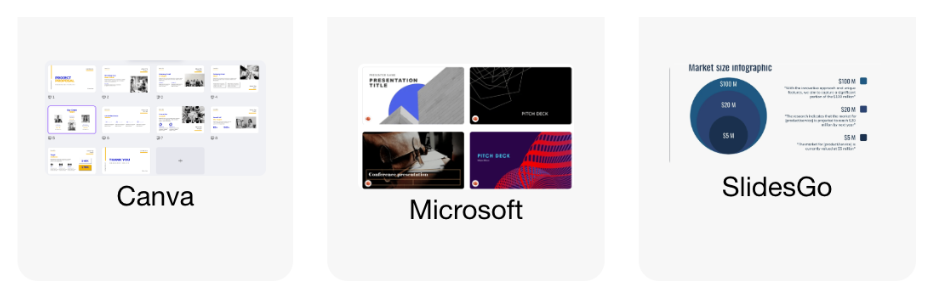
Canva has both free and paid plans with tons of templates. Pro tip: I usually export Canva templates to PowerPoint and do the bulk of my editing there. It gives me more control and I'm just more comfortable with PowerPoint's editing capabilities.
SlidesGo is where I go when I need something that looks genuinely professional. Head straight to their "Business" and "Pitch Deck" categories. These templates work for corporate presentations without being boring.
Microsoft Office Online gets overlooked, but their template library has improved significantly in recent years. They have some genuinely good free, professionally designed templates that look nothing like the default package.
Visual Resources That Elevate Your Slides
Icons and photos make or break a slide's visual appeal. The wrong resource makes everything look generic. The right ones make your presentation look custom-built.
The Noun Project is my go-to for icons. PowerPoint's built-in icon library is decent but limited, which means everyone ends up using the same generic lightbulb for "ideas." Grabbing icons from The Noun Project gives your slides a more custom feel and helps with visual storytelling.
Unsplash and Pexels have free stock photos that don't immediately signal "I found this on a free stock site." I browse these when I need quality images without paying for expensive stock. You can also directly add stock photos within PowerPoint. Go to Insert Menu, Pictures, Stock Images.
Adobe Stock is where I go when I need something really specific or high-quality. Hot tip: they offer a 30-day free trial with 10 free image downloads, and they sell credit packages instead of subscriptions. You can buy just a few images when needed without committing to another monthly subscription.
Midjourney works when nothing else does. When you need something ultra-specific that stock sites don't have, create it. With the right prompts, you can design presentation visuals that look professionally made and perfectly tailored to your content.

Design Tools That Actually Make a Difference
Coolors is a free color palette generator that's genuinely helpful. While your first move should always be sticking with your company's brand guide and prescribed colors, sometimes you need complementary colors or a whole new palette. Coolors helps you build color schemes that actually work together.
Build an inspiration deck. This isn't a website, but it might be your most valuable resource. Start collecting screenshots of great slides you've made, your colleagues have created, or that you've spotted during webinars. Next time you're creating a deck, you'll have visual inspiration at your fingertips instead of staring at a blank slide. Earnings call decks and annual reports are golden for this. They're usually designed by professional teams and look fantastic. Screen-grab elements to add to your inspiration deck.
AI Tools and Plugins That Save Real Time
Beautiful.AI and similar AI-powered presentation creators help when you have a visual-centric presentation with lots of photos and bold text. They handle the heavy lifting on formatting. There's a learning curve with the editor, but it pays off if you're building multiple decks.
Ampler Charts is a PowerPoint add-in for advanced data visualizations. Build impressive Gantt charts, Mekko charts, and waterfall diagrams that tell a story and look professional. Consultants love this one because it makes complex charts simple while maintaining brand consistency.
BrightSlide is a free PowerPoint plugin that's worth your time. The Animation Painter+ is the standout feature. It lets you copy animations and stack them on top of existing ones without breaking what's already there. The waterfall animation delay tool creates flowing cascades of animation in a few clicks. No more manually staggering animations for minutes.
The Real Time Saver
None of these tools replace good storytelling or clear messaging. But they do remove friction. They get you past the blank page faster. They help you look like you hired a designer when you didn't. And they let you focus on the actual work of structuring your presentation instead of wrestling with design software.
Start with one template library and one visual resource. Once you're comfortable, add a color tool and one plugin that solves a specific problem you actually have. You don't need all of these. You need the ones that match how you actually work.
Enjoyed this? Get more like it.
Join The Presentation Lab for frameworks, templates, and coaching to help you present like a leader. New posts land here every month.
